Validation
Test emails in Outlook and Gmail locally
Check existing HTML emails and preview Outlook, Gmail and Apple Mail locally with a free JavaScript library or CLI. No React, account or test send required.
@hyper-elements/email-clients is a free JavaScript and TypeScript library for checking existing HTML emails and previewing Outlook, Gmail and Apple Mail locally. It takes a Hyper Elements email, or complete HTML from MJML, React Email, an email builder or a hand-written email; the HTML needs no React. Use the library in your code or @hyper-elements/cli from the shell. No account, API key or test send is needed, and the email is never uploaded.
renderInEmailClients() returns a preview per client: a self-contained HTML page that opens in a browser and lists what the client changed.
Supported email clients
Try the email testing playground to paste an existing HTML email, select clients, and inspect previews and compatibility findings in your browser.
Accuracy is how closely the emulator matches each real client for emails.
| Client | ID | Accuracy |
|---|---|---|
| Classic Outlook for Windows | outlook |
97% |
| Outlook.com and new Outlook | outlook-com, outlook-com.mac |
99% |
| Outlook for Mac, light and dark | outlook-mac, outlook-mac.dark |
98% |
| Gmail on the web | gmail, gmail.mac |
99% |
| Gmail app on Android | gmail-app, gmail-app-other |
98% |
| Gmail app on an iPhone | gmail-app.iphone |
97% |
| Apple Mail on a Mac, light and dark | apple-mail, apple-mail.dark |
98% |
| Apple Mail on an iPhone, light and dark | apple-mail.iphone, apple-mail.iphone.dark |
98% |
| Yahoo Mail, light and dark | yahoo, yahoo.mac, yahoo.dark, yahoo.mac.dark |
99% |
| AOL Mail | aol, aol.mac |
99% |
More email clients are on the way.
Name the clients you want with emailClients: ["outlook", "gmail-app"]; without it you get the default set (see Options). apple-mail is previewed on a Mac and on an iPhone, 393px wide, and gmail-app on Android and on an iPhone, 345px wide. gmail-app-other is a non-Gmail account in the Gmail app, which drops the email’s <style>. yahoo and aol are drawn in their message panes, 758px and 869px wide. AOL Mail’s dark mode leaves the email as it is, so aol.dark matches aol.
Test a Hyper Elements email
npm i @hyper-elements/email-clientsimport { Button, Column, Email, Heading, Text } from "@hyper-elements/react";
import { renderInEmailClients } from "@hyper-elements/email-clients";
const welcome = (
<Email previewText="Your account is ready" style={{ backgroundColor: "#f4f4f5" }}>
<Column style={{ backgroundColor: "#ffffff", padding: 32, gap: 16, borderRadius: 12 }}>
<Heading level={1} style={{ fontSize: 24 }}>Welcome aboard</Heading>
<Text>Your account is ready.</Text>
<Button href="https://example.com/start" style={{ borderRadius: 999 }}>Get started</Button>
</Column>
</Email>
);
const { previews, skipped, diagnostics } = await renderInEmailClients(welcome, { dark: true });
previews.map((preview) => preview.id);
// ["outlook", "outlook-com", "outlook-com.mac", "gmail", "gmail.mac",
// "apple-mail", "apple-mail.iphone", "apple-mail.dark", "apple-mail.iphone.dark"]
const outlook = previews.find((preview) => preview.id === "outlook");
// { id: "outlook", client: "outlook", variant: "desktop", dark: false, width: 820,
// approximate: true, filename: "outlook.html", html: "<!doctype html>…" }
skipped[0];
// { client: "outlook", dark: true, reason: "Classic Outlook's dark mode isn't measured" }
diagnostics[0].message;
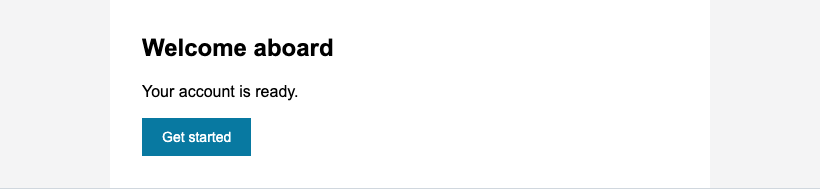
// "borderRadius on this Column in classic Outlook: square corners"What happens next is up to you or your agent: write outlook.html to a file and open it, load it in Playwright and take a screenshot, or read what the client changed (see What a preview tells you). Opened in Chromium, the Outlook preview shows the card and the button with square corners, as classic Outlook draws them.
Examples
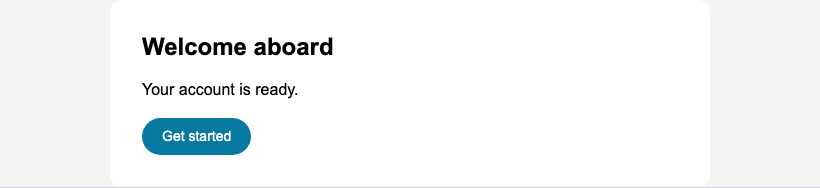
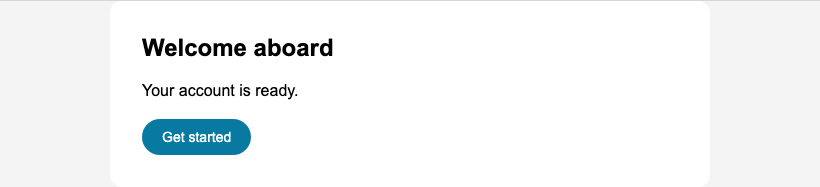
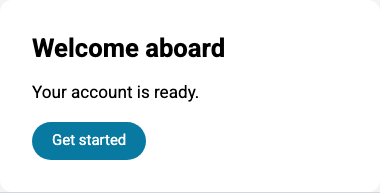
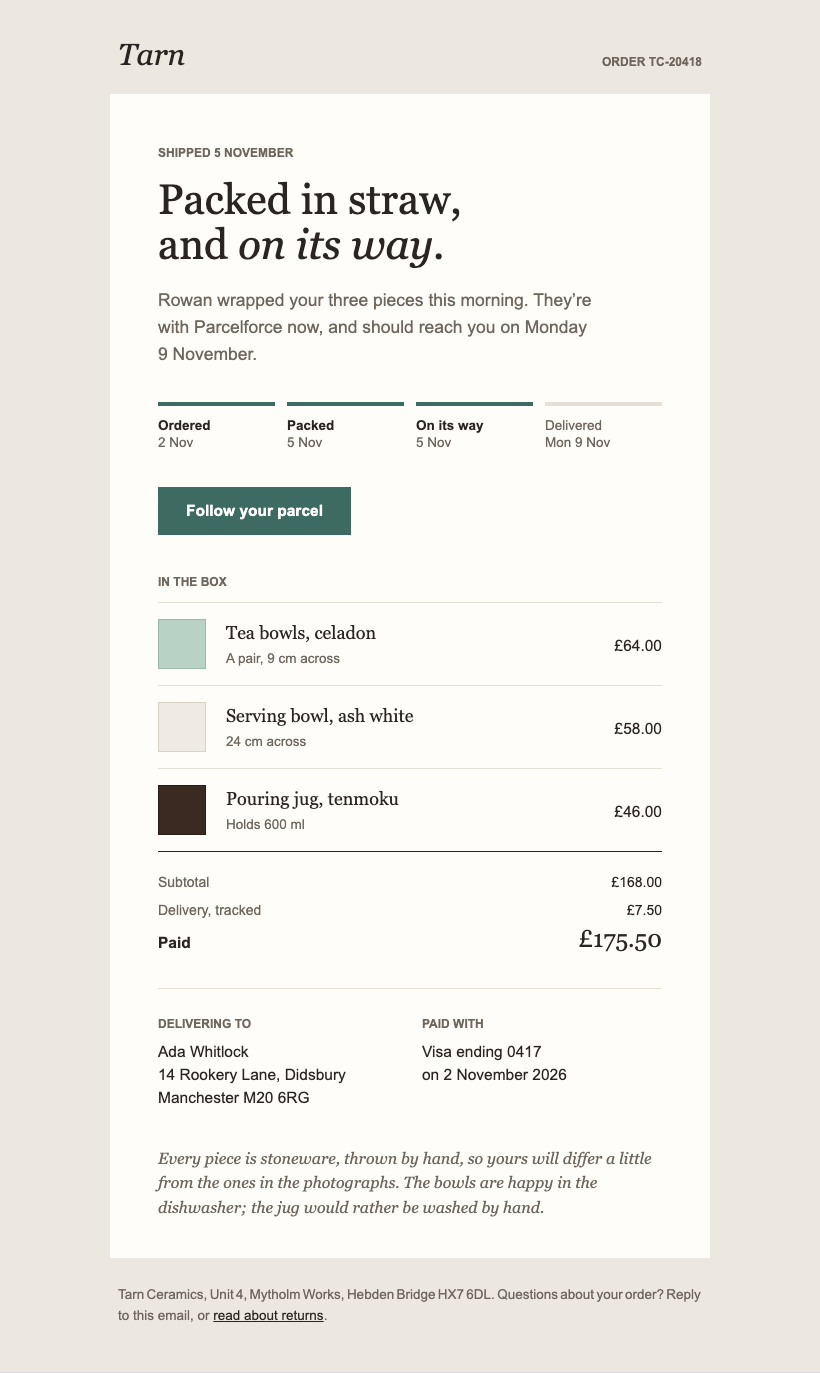
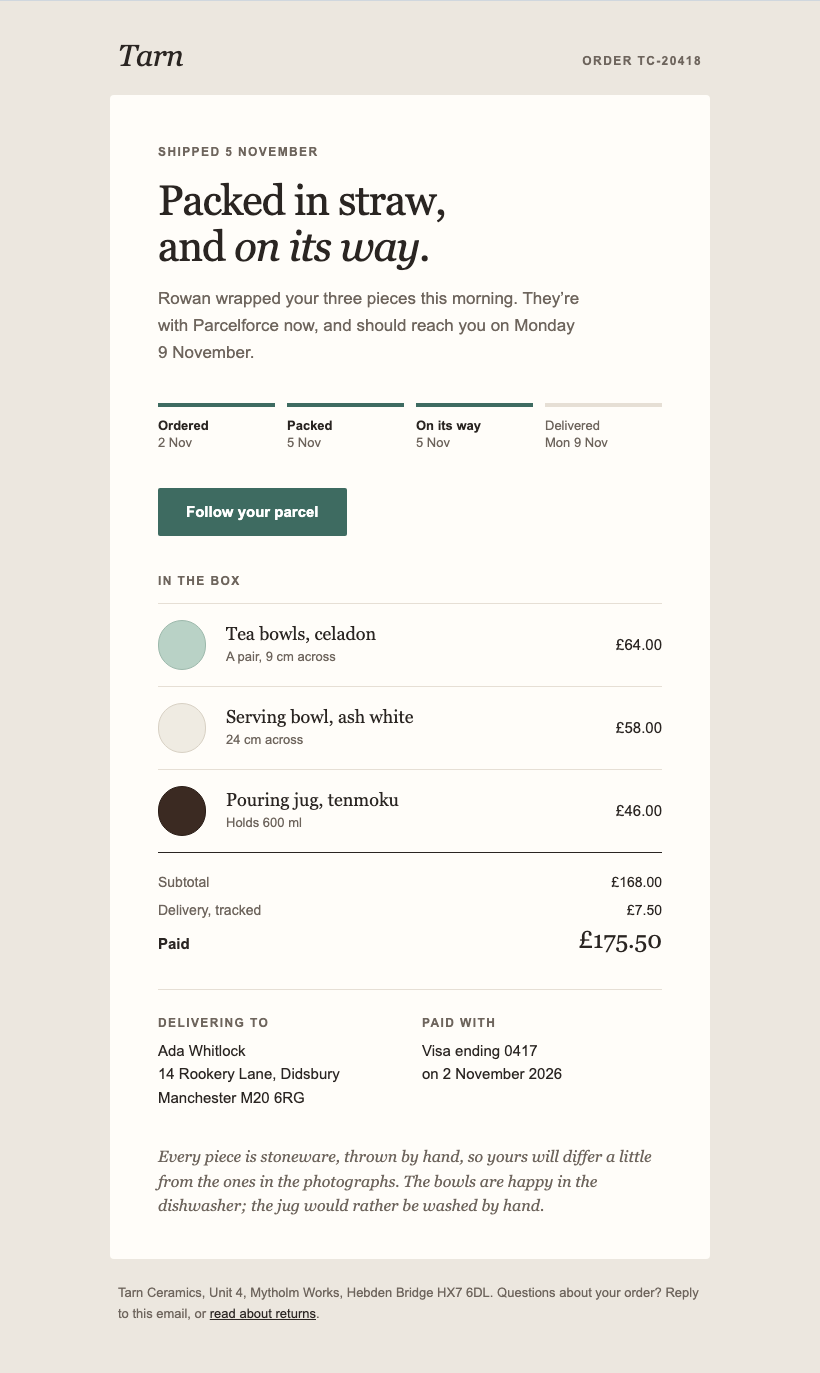
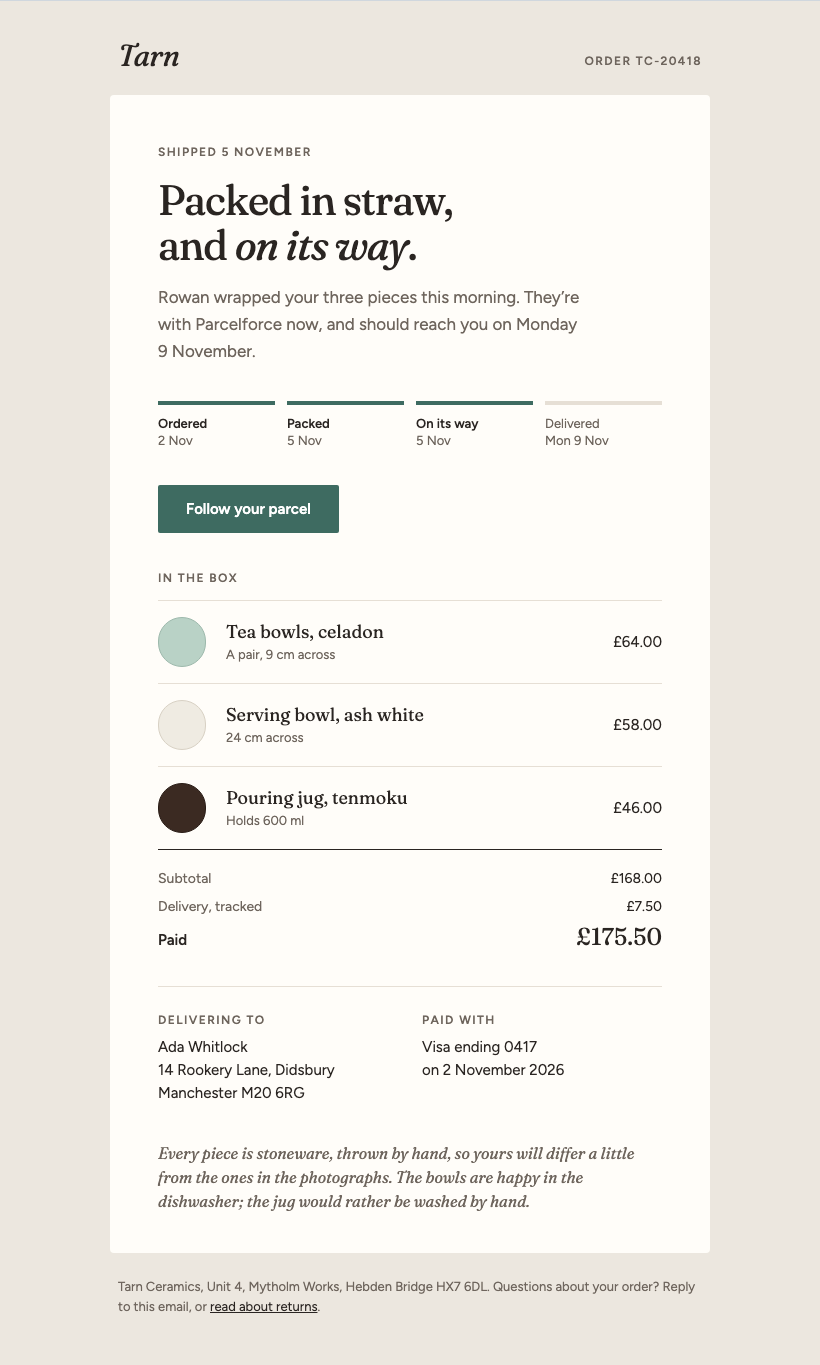
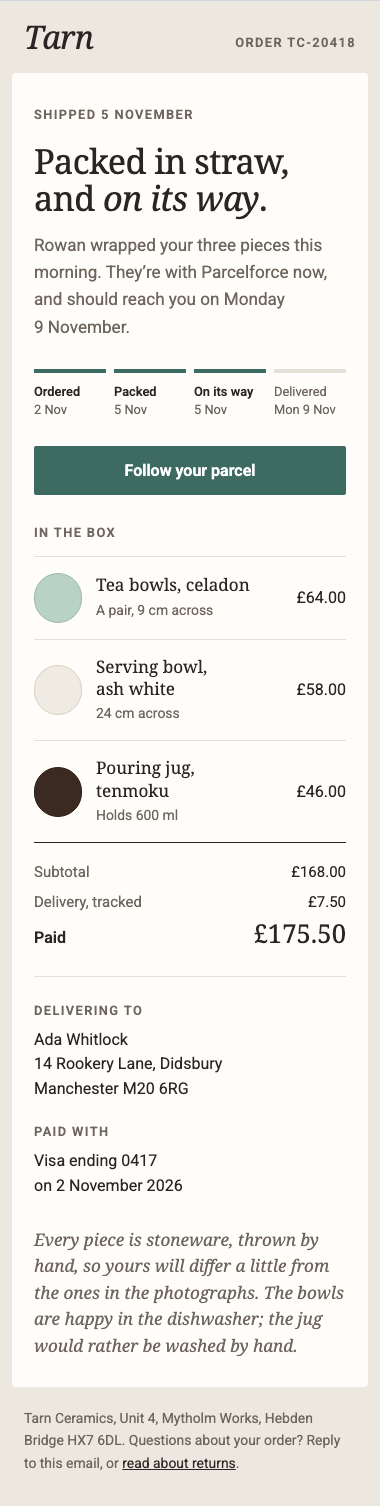
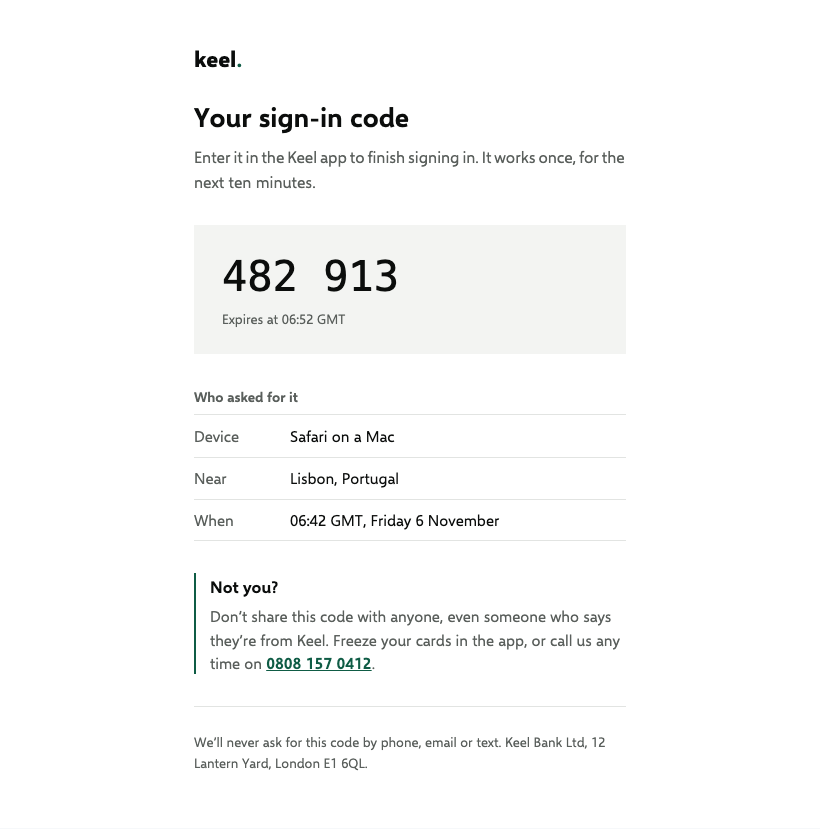
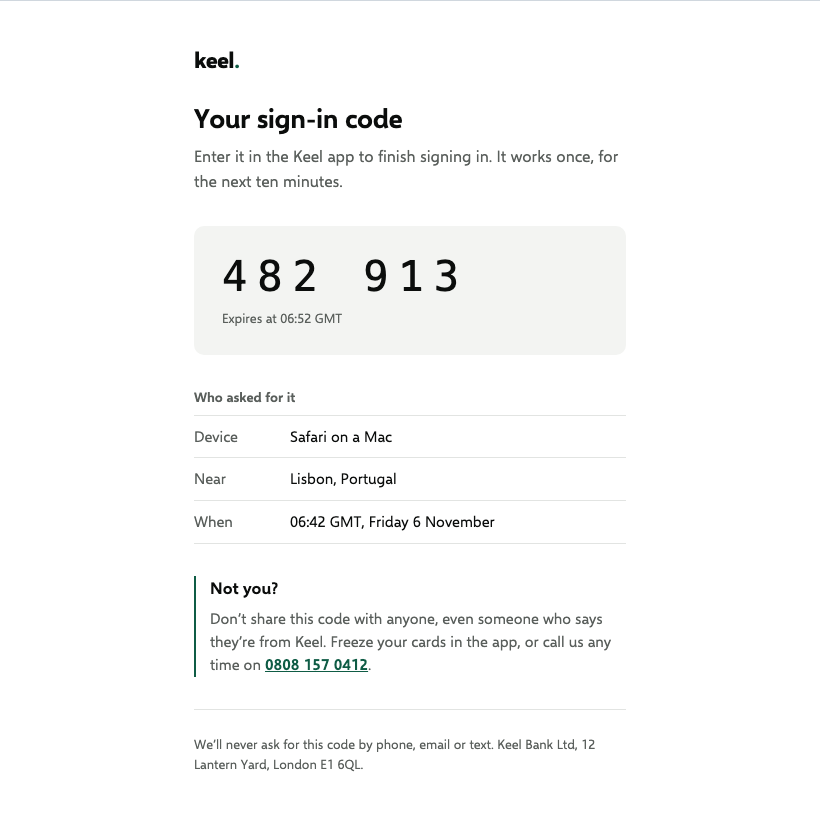
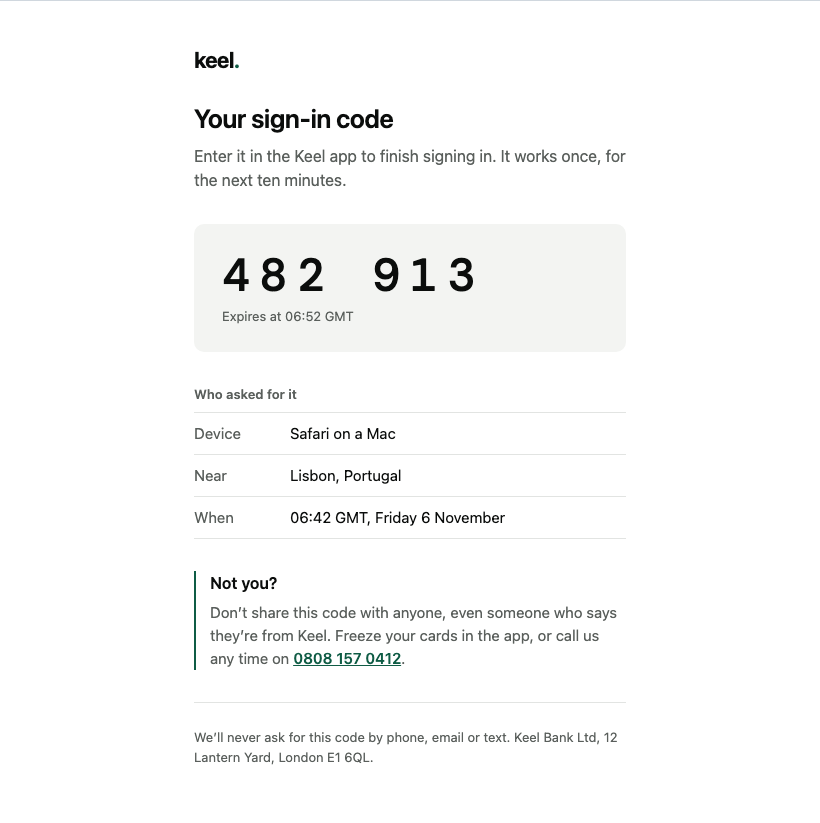
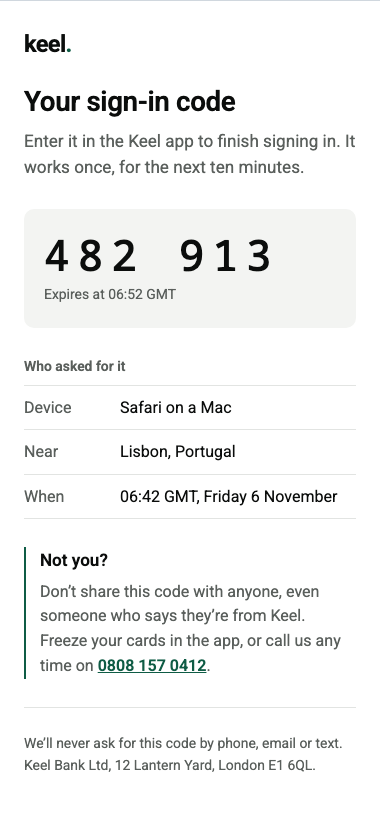
Here’s what the emulator draws for three emails, each in four clients, the Gmail app at a phone’s width. Open an image to see it at full size.
The welcome email above
Test any HTML email
An email built another way (MJML, React Email, by hand, an email builder’s export) can be tested as it is: renderInEmailClients() takes its HTML as a string too. React and @hyper-elements/react aren’t needed for that: npm i @hyper-elements/email-clients is enough.
npm install @hyper-elements/email-clientsSave this as preview-email.mjs beside your complete welcome.html email:
import { mkdir, readFile, writeFile } from "node:fs/promises";
import { renderInEmailClients } from "@hyper-elements/email-clients";

const html = await readFile("welcome.html", "utf8");
const { previews } = await renderInEmailClients(html, { emailClients: ["outlook", "gmail-app"] });
await mkdir("out", { recursive: true });
for (const preview of previews) await writeFile(`out/${preview.filename}`, preview.html);
Run node preview-email.mjs, then open out/outlook.html in Chromium or Chrome. You can also screenshot it or read what the client changed.
It takes the whole email, from <html> to </html>, exactly as you send it, and the preview options: emailClients, dark, fonts, widths and computers.
Its diagnostics list what each client previewed removes or changes in the HTML, each with its line:
const { diagnostics } = await renderInEmailClients(html, { emailClients: ["outlook", "gmail", "gmail-app"] });
// [{ code: "email/html-css", severity: "info", line: 5, excerpt: "<style>", clients: ["outlook"],
//    message: "This email may have an @media in a <style>: the client applies no media query, …", fix: "…" }]
Test an email from the shell
@hyper-elements/cli checks and previews an existing HTML email with no script or React installation:
npx @hyper-elements/cli check email.html
npx @hyper-elements/cli preview email.html
The preview command writes out/clients/email/outlook.html and the other client previews. To draw them and collect findings automatically, install the CLI and playwright-core together, and have Chrome, Edge or Playwright’s Chromium installed:
npm install -D @hyper-elements/cli playwright-core
npx hyper-elements preview email.html --findings
If you need Chromium, download it once with npx hyper-elements preview --install-browser. For Hyper Elements templates, install the CLI in your project and run npx hyper-elements preview emails/welcome.tsx.
For an agent or a CI job that wants what each client changed as data, there are three ways, by what it has:
- A Chromium the CLI finds.
npx hyper-elements preview emails/welcome.tsx --findings --jsonopens each preview in Chromium, withplaywright-core(install it beside the CLI): the browserCHROME_PATHnames, else Playwright’s Chromium (npx hyper-elements preview --install-browserdownloads it), else an installed Chrome or Edge. Its JSON line gives each preview’sready(ok;incompletewhere a font or an image didn’t load;error) and itsfindings: what the client removed, what was missing, the fonts and the findings listed under What a preview tells you. - A browser of its own. Where the CLI finds none, the run exits
2with"browser": null, "reason": "no-browser"("no-playwright-core"where that isn’t installed), and the files are written all the same. Open each file, or the URLspreview --serveprints for a browser that can’t openfile://paths, wait for<html data-email-client-ready>, and read the JSON in#email-client-findings. - No browser at all.
npx hyper-elements check emails/welcome.tsx --jsongives the email client checks: each problem with the clients it’s about and what to change. That’s what’s known without drawing the email.
Why it matters
- No send-and-wait loop. A preview takes as long as a render, so you can check every change, not only the last one before a campaign.
- Free, with no API. There’s no account to make, no key to keep, and no limit on how many previews you make.
- Nothing leaves your machine. The email isn’t sent anywhere or uploaded to a screenshot service, which matters for customer data, unreleased products and regulated content.
- It runs where your code runs. In a test, in CI, or in an agent’s loop: an agent with a browser can open a preview, read what the client changed, and fix the template.
- The same answer every time. The same email gives the same preview, so a preview can be a snapshot in a test.
Compared with screenshot services
| Email client emulator | Screenshot services | |
|---|---|---|
| Cost | Free | Paid, per test or per seat |
| Setup | npm i |
An account and an API key |
| Where it runs | Your machine, your CI, your agent | Their servers, with your email uploaded |
| Speed | Milliseconds | Minutes per test |
| What you get | A preview per client, and what each one changed | A screenshot per client |
| Clients | The clients above, with more on the way | Dozens, on real devices |
Use the emulator in the loop, on every change; use a screenshot service, or a real inbox, for a final check across many clients. Litmus alternatives compares Hyper Elements with Litmus, Parcel and Mailosaur.
Options
| Option | What it does |
|---|---|
emailClients |
The clients to emulate (default: outlook, outlook-com, gmail, apple-mail) |
dark |
Also a dark-mode preview, for the clients that have one (Apple Mail on a Mac and an iPhone, Outlook for Mac, Yahoo Mail and AOL Mail, today) |
widths |
The width a client’s preview draws the email at, where it isn’t the client’s own: { "outlook-com": 540 } for Outlook.com’s reading pane beside the message list. Webmail matches media queries at the browser window’s width, not the pane’s, so a narrow pane keeps the email’s desktop styles, as it does for its readers |
computers |
Webmail draws with the reader’s computer’s fonts. Outlook.com, Gmail, Yahoo Mail and AOL Mail on the web are each previewed on Windows (outlook-com, gmail, yahoo, aol) and on a Mac (outlook-com.mac, gmail.mac, yahoo.mac, aol.mac). computers: ["windows"] keeps one |
fonts |
"url" (the default) loads the open fonts the previews draw with from a CDN; "inline" puts them in each preview, so it draws offline |
plugins, and render()’s other options |
Passed to render(). The email client checks for the clients emulated are added for you |
renderInEmailClients() returns:
previews:{ id, client, model, computer, variant, dark, width, filename, html, approximate }for each client and variant, light before dark;skipped: what wasn’t emulated, and why (a client with no dark mode);diagnostics:render()’s, with the email client checks for the clients emulated.
A preview isn’t the email you send: that’s render()’s html.
What a preview tells you
Each preview lists, at its top, what the client changed and anything it couldn’t draw as the client does:
- Removed: what the client removed or rewrote, and how often (rounded corners,
rgba()colours, a<style>rule). - Missing: a font the machine opening the preview doesn’t have, the email’s own web font where it didn’t load, an image that didn’t load.
- Fonts: the system fonts it drew with.
- Findings: a Heading or Button that a client draws on more lines, text that doesn’t read in dark mode, and where Gmail clips the email.
Checks and the emulator
The same package checks a template without drawing it: emailClients() is a plugin for validate() and render(), and names the clients each problem is about, with the fix. See Diagnostics.
import { validate } from "@hyper-elements/react";
import { emailClients } from "@hyper-elements/email-clients";

const { diagnostics } = validate(welcome, { plugins: [await emailClients()] });
// info email/outlook-degraded … borderRadius on this Column in classic Outlook: square corners [outlook]
The checks cover more clients than the emulator (the Outlook app, Samsung Email and others, from caniemail’s tables).
Common questions
How do I test an email in Outlook without sending it?
Render it with renderInEmailClients() from @hyper-elements/email-clients and open its outlook preview in Chromium: it shows the email as classic Outlook for Windows draws it, and lists what Outlook changed. There’s no test send, no Outlook to install and no account. For Outlook.com and the new Outlook, open the outlook-com preview.
How do I preview an email in Gmail?
Open the gmail preview for Gmail on the web, or name gmail-app in emailClients for the Gmail app at a phone’s width. Each preview lists, at its top, what Gmail removed or changed in the email.
Can I test an email I didn’t build with Hyper Elements?
Yes. Pass its HTML to renderInEmailClients() as a string; React and Hyper Elements aren’t needed for that (see Test any HTML email). To bring a React Email template over to Hyper Elements instead, use npx @hyper-elements/migrate (see From React Email).
Is it free?
Yes. @hyper-elements/email-clients is free and runs on your machine: no API key, no account, no cost per preview, and the email isn’t sent or uploaded anywhere.
Can my coding agent use it?
Yes. An agent can run npx hyper-elements preview emails/welcome.tsx --findings --json (or call renderInEmailClients() after rendering), read what each client changed, and fix the template. See Test an email from the shell and AI agents.