Generate PDF invoices in Node.js without headless Chrome
Build a React invoice PDF in Node.js with local fonts, a logo, explicit pages and useful diagnostics. Includes a complete template and current limitations.
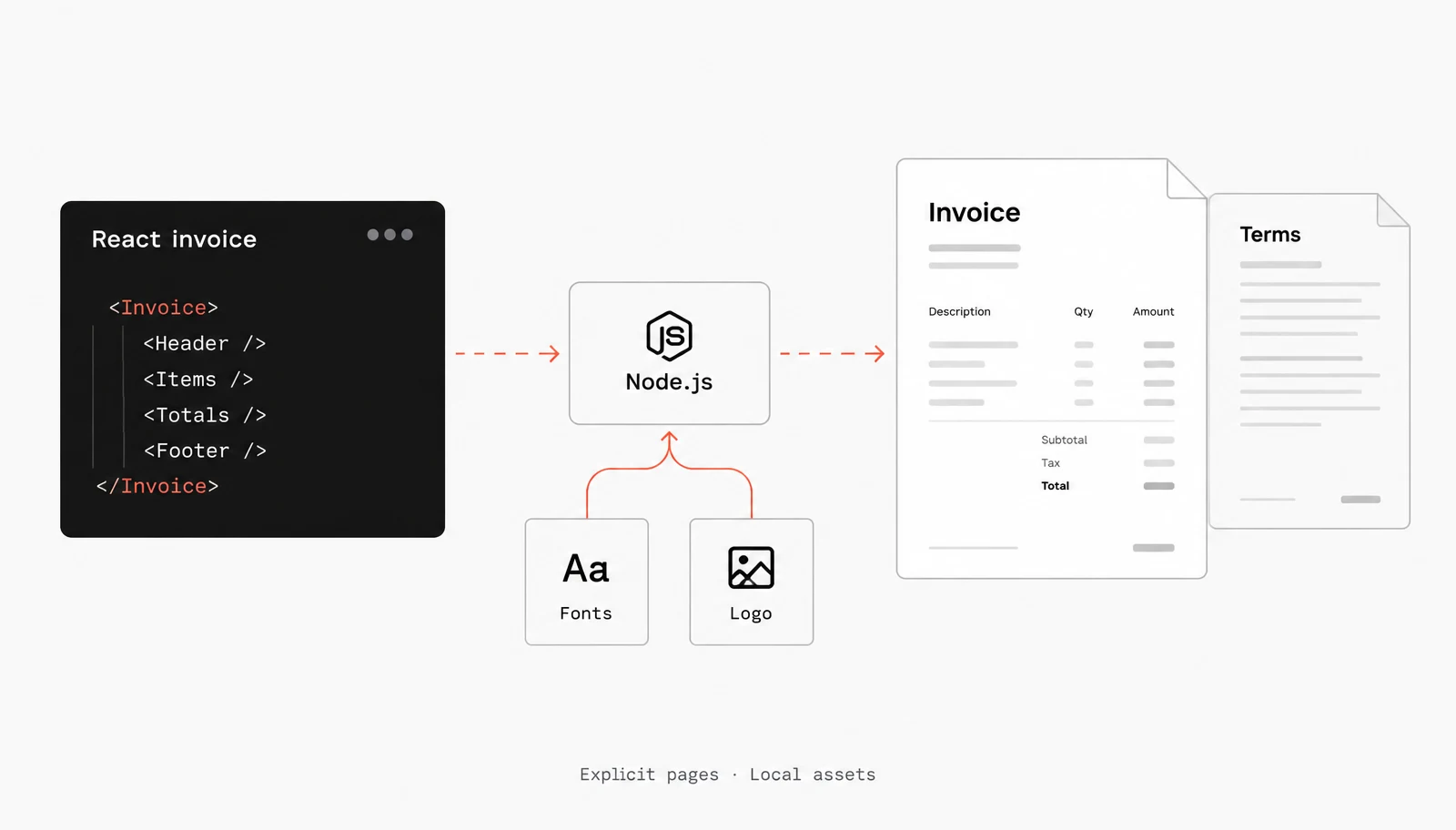
Use a React Document template and renderPdf() to write an invoice PDF directly in Node.js. Supply fonts and images as bytes, define each page explicitly, and inspect the result before sending it.
This tutorial uses Hyper Elements for the template and its @hyper-elements/react/pdf entry for PDF output. You do not launch a browser or fetch assets during rendering. You also do not get a browser’s full CSS model or automatic pagination. The example deliberately separates the invoice and payment terms into two pages.
How do I create the first invoice PDF?
Start in an empty directory with Node.js and npm available. Install the PDF engine explicitly: it is an optional peer dependency, not something the main Hyper Elements entry loads for you. These commands follow the PDF installation guide and the tsx project setup.
npm init -y
npm install @hyper-elements/react @react-pdf/renderer react react-dom
npm install -D tsx
In package.json, add "type": "module" as a top-level field, keeping the existing fields. This makes the example run as ESM; without it, the CommonJS path can fail on the PDF engine’s dependency exports. This setting affects other JavaScript and TypeScript files in the package too, so use this isolated tutorial directory rather than changing an existing application blindly. See tsx’s module-format guide.
Create this configuration so JSX uses React’s automatic runtime. The .tsx extension enables JSX syntax; the JSX configuration selects how it is transformed. This is a small execution setup, not a complete TypeScript checking configuration.
tsconfig.json
{
  "compilerOptions": {
    "jsx": "react-jsx"
  }
}
Before running the script, create fonts/ and images/. Put licensed Inter Regular and Bold TTF files at the paths below, and supply a PNG logo with a 3:1 aspect ratio. Use your own assets; no download script or remote CDN is required.
fonts/Inter-Regular.ttf
fonts/Inter-Bold.ttf
images/logo.png
invoice.tsx
tsconfig.json
Save this complete example as invoice.tsx. The order is fictional. It uses two items, no tax and a single currency so the PDF workflow stays visible. Replace those business rules with your own before making a real invoice.
invoice.tsx
import { readFile, writeFile } from "node:fs/promises";
import {
  Document, ElementsError, Heading, Image,
  PageFooter, PageHeader, PageNumber,
  Table, TableCell, TableRow, Text,
  formatDiagnostics, validate,
} from "@hyper-elements/react";
import { renderPdf } from "@hyper-elements/react/pdf";

const order = {
  number: "INV-2705",
  customer: "Morgan Lee",
  issued: "10 November 2026",
  due: "10 December 2026",
  items: [
    { id: "shirt", name: "Linen shirt", quantity: 2, unitCents: 4800 },
    { id: "bag", name: "Canvas bag", quantity: 1, unitCents: 2400 },
  ],
};

const money = (cents: number) =>
  new Intl.NumberFormat("en-US", {
    style: "currency", currency: "USD",
  }).format(cents / 100);

const totalCents = order.items.reduce(
  (sum, item) => sum + item.quantity * item.unitCents, 0,
);

// This is an application limit, not a renderer fit guarantee.
if (order.items.length > 6) {
  throw new Error("Review and split this invoice into explicit pages.");
}

const logo = "https://assets.example.com/invoice-logo.png";

function Invoice() {
  return (
    <Document
      size="A4"
      margin={48}
      title={`Invoice ${order.number}`}
      style={{ fontFamily: "Inter, sans-serif", fontSize: 14 }}
    >
      <PageHeader style={{ padding: [0, 0, 20, 0] }}>
        <Image
          src={{ src: logo, width: 240, height: 80 }}
          alt="Northline Supply"
          style={{ width: 120 }}
        />
      </PageHeader>
      <PageFooter>
        <Text style={{ fontSize: 10, textAlign: "right" }}>
          Page <PageNumber /> of <PageNumber total />
        </Text>
      </PageFooter>
      <Document.Page style={{ gap: 16 }}>
        <Heading level={1}>Invoice {order.number}</Heading>
        <Text>Bill to: {order.customer}</Text>
        <Text>Issued: {order.issued} · Due: {order.due}</Text>
        <Table style={{
          cellPadding: [8, 4],
          rowBorder: "1px solid #dedede",
        }}>
          <TableRow header>
            <TableCell>Item</TableCell>
            <TableCell style={{ textAlign: "right" }}>Qty</TableCell>
            <TableCell style={{ textAlign: "right" }}>Unit</TableCell>
            <TableCell style={{ textAlign: "right" }}>Amount</TableCell>
          </TableRow>
          {order.items.map((item) => (
            <TableRow key={item.id}>
              <TableCell>{item.name}</TableCell>
              <TableCell style={{ textAlign: "right" }}>
                {item.quantity}
              </TableCell>
              <TableCell style={{ textAlign: "right" }}>
                {money(item.unitCents)}
              </TableCell>
              <TableCell style={{ textAlign: "right" }}>
                {money(item.quantity * item.unitCents)}
              </TableCell>
            </TableRow>
          ))}
        </Table>
        <Text style={{ fontWeight: 700, textAlign: "right" }}>
          Total due: {money(totalCents)}
        </Text>
        <Text>Payment instructions are on the next page.</Text>
      </Document.Page>
      <Document.Page style={{ gap: 16 }}>
        <Heading level={2}>Payment terms</Heading>
        <Text>Please pay by {order.due}.</Text>
        <Text>Use {order.number} as the payment reference.</Text>
        <Text>Contact your account representative for payment details.</Text>
      </Document.Page>
    </Document>
  );
}

async function main() {
  const element = <Invoice />;
  const check = validate(element);
  if (check.diagnostics.length) {
    console.warn(formatDiagnostics(check.diagnostics));
  }
  if (!check.valid || check.diagnostics.some(
    (d) => d.severity === "warning",
  )) {
    throw new Error("Review template diagnostics before writing a PDF.");
  }

  const { pdf, diagnostics } = await renderPdf(element, {
    fonts: [
      { family: "Inter", src: await readFile("fonts/Inter-Regular.ttf") },
      {
        family: "Inter", src: await readFile("fonts/Inter-Bold.ttf"),
        weight: 700,
      },
    ],
    images: { [logo]: await readFile("images/logo.png") },
  });
  if (diagnostics.length) console.warn(formatDiagnostics(diagnostics));
  if (diagnostics.some((d) => d.severity === "warning")) {
    throw new Error("Review PDF warnings before saving the file.");
  }
  await writeFile("invoice.pdf", pdf);
}

main().catch((error: unknown) => {
  if (error instanceof ElementsError) {
    console.error(formatDiagnostics(error.diagnostics));
  } else {
    console.error(error);
  }
  process.exitCode = 1;
});
Run the file from the project root so the relative asset paths resolve:
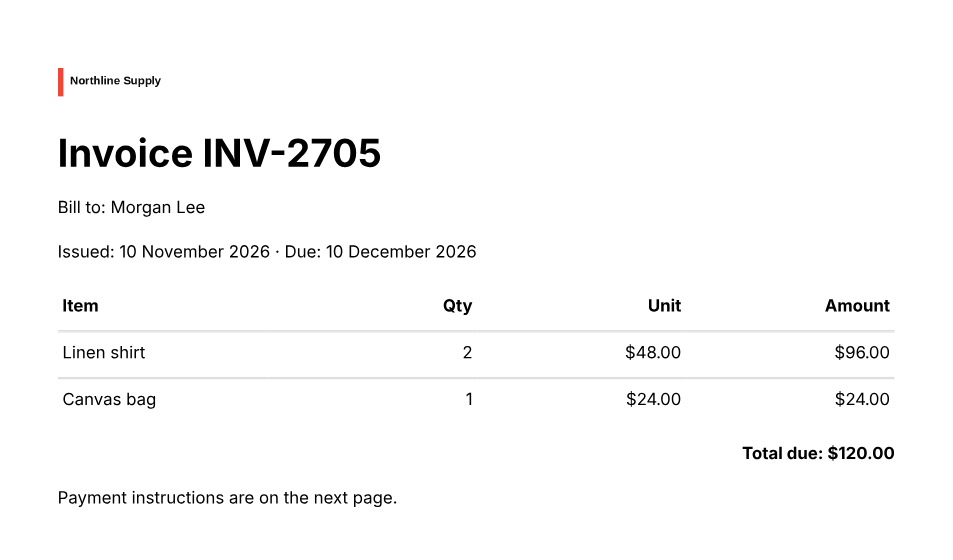
npx tsx ./invoice.tsxIf the render succeeds without warnings, the script writes invoice.pdf in that directory. The two explicit pages contain the invoice and its terms, with the same logo and page-number footer.
Why keep order data outside the template?
The template should describe the document, not fetch the order or decide which prices are authoritative. Load and authorize the order first, then pass trusted data into your rendering code. The example keeps everything in one file so you can see the whole path.
Prices are stored as integer cents and line amounts are calculated before currency formatting. Do not add formatted currency strings. This deliberately narrow example assumes USD, whole item quantities and no discounts or taxes; it is not a general accounting library. Keep your existing tax, rounding and invoice-number rules in the business layer.
Likewise, the six-item guard is an editorially chosen input bound, not a measurement of A4 capacity. Even one very long description can wrap into too much space. Validate incoming field lengths and quantities for your application, then review the longest real data you permit. Do not silently truncate a description or discard a line to make the page fit.
How do local fonts and images work?
The logo URL is an identifier used to match the template’s image to bytes in images. The renderer does not download that URL. The Node.js file API supplies those bytes from disk, and writeFile() saves the PDF bytes. Deploy the asset files with your application and resolve their locations deliberately.
Supply each font weight you use. Here, regular text uses Inter Regular and the total uses Inter Bold. Hyper Elements accepts TTF, OTF or WOFF for PDF fonts, not WOFF2. Raster images must be PNG or JPEG; an external SVG image is not drawn as an image. An Svg component is a separate vector option.
For text outside Western European characters, provide a font with the necessary glyphs. Standard PDF fallback fonts are limited, and the renderer does not check that your supplied file contains every character. Inspect the actual customer names and symbols you support. A font’s presence alone is not a text-correctness test.
Will a long invoice create more pages automatically?
No. Document.Page defines a page; it does not spill its children onto another one. Alternatively, PageBreak splits a run of content into explicit pages. A header and footer repeat on each page inside the document’s margins.
Choose page boundaries in your application. For larger invoices, prepare page-sized groups, repeat the table heading in each page’s table and put the grand total where you intend it. A fixed number of rows is only a starting policy: variable descriptions, font sizes and header heights change the space required.
The document/overflow diagnostic is an estimate, not a text measurement or a promise that every row is visible. The absence of that warning must not be your acceptance criterion. If automatic flow for arbitrary documents is a requirement, this explicit-page approach is not the right fit without additional pagination work.
When is a browser-based PDF still the better choice?
Choose this workflow when you can express a bounded document using the supported components and want assets supplied explicitly. It is not an HTML-to-PDF compatibility layer. Reusing an existing application screen may be a different problem from building an invoice template.
For example, RisingStack’s Puppeteer tutorial uses headless Chrome to print an existing, heavily styled React report with SVG visualizations. That approach preserves a browser-rendered page, but introduces browser setup and deployment concerns. Neither approach is universally better: decide whether you need a browser page printed or a document assembled from a constrained template.
Also separate “no network during rendering” from “no network in the application.” An application may fetch an authorized order before it creates the template. Here, rendering receives already-loaded data and asset bytes. Keeping that boundary explicit makes missing files and missing order data different failures, rather than a remote asset request hidden inside document generation.
Which diagnostics should stop the export?
The script checks the template first, then checks PDF-specific diagnostics after rendering. validate() can report unsupported features and estimated overflow, but font and image checks need the actual files and happen in renderPdf(). A valid: true result can still contain warnings.
This example treats every warning as a reason to stop before saving. That is an application policy, stricter than the renderer’s default. Keep stable diagnostic codes in automated checks and show the message to the developer. Catch ordinary application and file errors too; they are not all template diagnostics.
| Diagnostic | What to review |
|---|---|
pdf/root | Use a Document root, not an Email or Canvas. |
pdf/image | Supply the matching image bytes and a supported format. |
pdf/font / pdf/font-weight | Provide the requested family, file format and weight. |
document/overflow | Shorten or split the content explicitly, then inspect every page. |
The diagnostics reference explains severities and paths. PDF errors reject with ElementsError; warnings and notes accompany the rendered bytes. Do not hide those messages simply because a file exists.
What should I check before sending an invoice?
Open the generated PDF, not only a browser rendering of the JSX. Review every line item, the total, logo proportions, page numbers, page edges and the last line on each page. Copy a customer name and an amount into a text editor, then search for them in the PDF. A page can look correct while its text layer is wrong.
Test a sequence of invoices in the same process, including accented names followed by ordinary Latin names, because the current text-layer issue is process-dependent. Use the largest descriptions and item counts you allow. These checks are regression cases, not a substitute for a released fix.
For an application integration, keep the PDF bytes until your review/export policy passes, then hand them to your existing download, storage or attachment code. Do not log private billing data. If you also need a transactional email, our React receipt-email tutorial covers a separate Email template; share order data, not a promise that one layout fits both outputs.
Frequently asked questions
Does this turn arbitrary HTML into a PDF?
No. It renders the supported Hyper Elements component model under a Document root. For an existing browser page that depends on full browser CSS or JavaScript, a browser-based print workflow may be more appropriate. This tutorial does not replace that workflow.
Can I preview the document as HTML?
Yes. render() from the main package returns print-ready HTML for a Document. The print HTML guide describes it. HTML font loading and PDF font bytes are separate configurations; an HTML preview is not a substitute for inspecting the final PDF.
Does tsx check TypeScript types?
No. It transforms and runs TypeScript. Add a separate TypeScript check to your project if you need one; tsx documents that workflow. Runtime template diagnostics and static types answer different questions.
What should I try next?
Replace the fictional order and local assets, generate one bounded invoice and inspect both pages. Then add your longest permitted data and review the current PDF release notes before connecting it to a billing workflow. Start with the complete example, not an unbounded table and an assumption that pagination will handle it.